
Affont Review (2026): A Fontself Alternative for Affinity
Discover Affont, a Fontself alternative for Affinity. Compare features, pricing, kerning, and learn how to create professional fonts without Adobe.
Affont Review (2026): A Fontself Alternative for Affinity
Looking for a Fontself alternative that works with Affinity? If you've been using Adobe Illustrator and Fontself Maker to create fonts, switching to Affinity might leave you wondering how to continue your font design workflow without relying on Adobe Creative Cloud.
Affinity is a powerful vector design application, but it doesn't include a built-in font creation system. Meanwhile, Fontself Maker works with Adobe Illustrator and Photoshop, making it incompatible with Affinity.
That's where Affont comes in.
Affont is a font creation tool designed specifically for Affinity users. It allows designers to transform vector artwork into functional fonts, refine spacing and kerning, add OpenType features, and export OTF, TTF, WOFF, and WOFF2 files.
For graphic designers, lettering artists, and independent font foundries, Affont offers a practical way to create fonts without depending on an Adobe subscription.
At Sensatype Studio, we've been exploring Affont as part of our typography production workflow. With more than seven years of experience creating commercial fonts, we're particularly interested in tools that simplify repetitive tasks without compromising type design quality.
In this review, we'll explore Affont's features, pricing, font creation workflow, and how it compares with Fontself Maker, along with our early experience using the software.
What Is Affont?
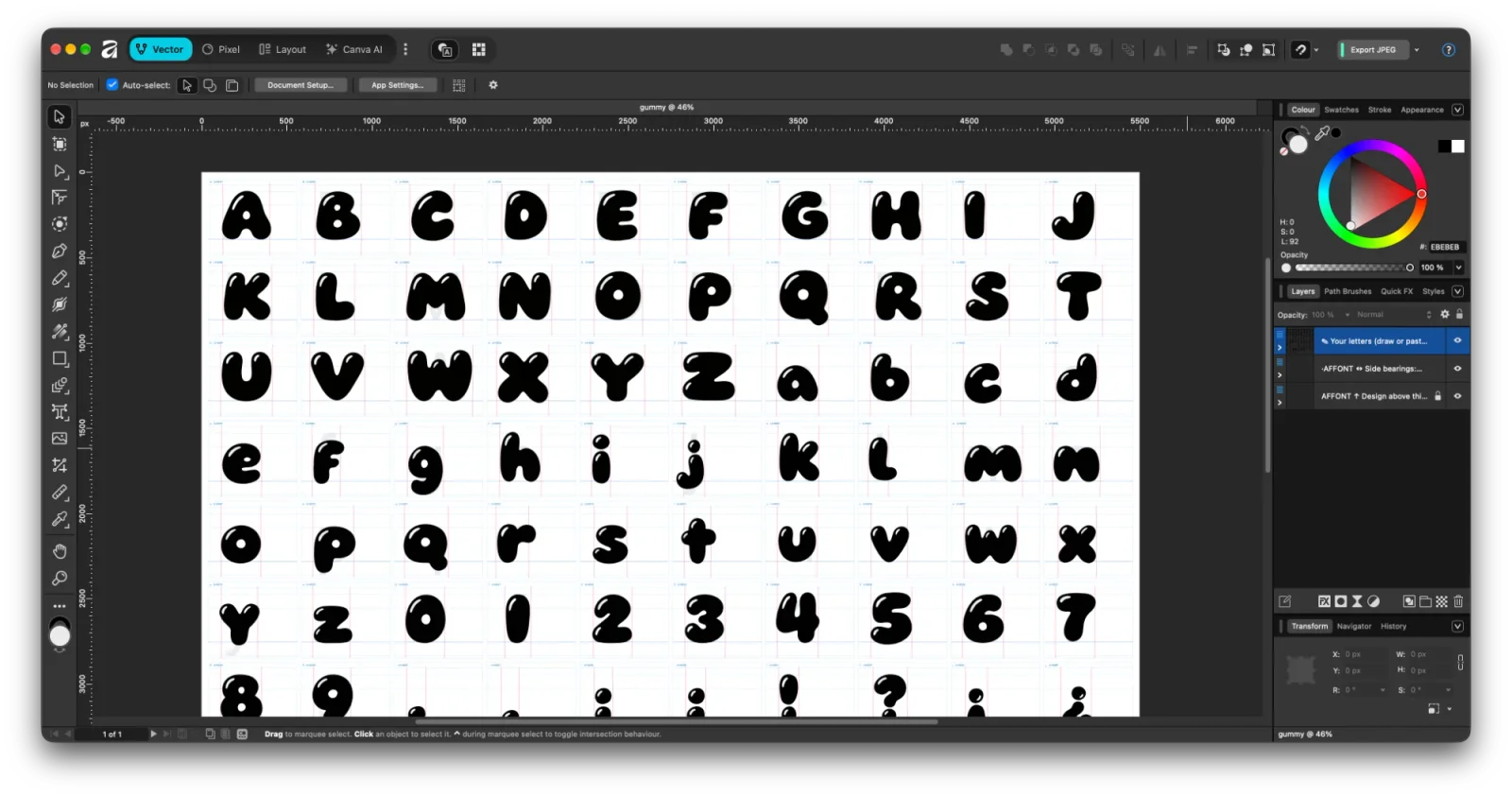
Affont is a font design software application that transforms vector artwork created in Affinity into installable digital fonts.
It combines Affinity's familiar drawing tools with a dedicated font editing application, making the technical side of typography production more accessible.
Traditionally, designers creating fonts in Affinity had to export individual letters as SVG files and import them into separate font editing software. This process often involved additional work organizing glyphs, adjusting proportions, and preparing font metrics.
Affont simplifies this workflow by connecting the drawing process directly to font development.
Designers can create their letterforms in Affinity, transfer them into Affont, and continue refining the typeface using specialized typography tools.
What Can You Do With Affont?
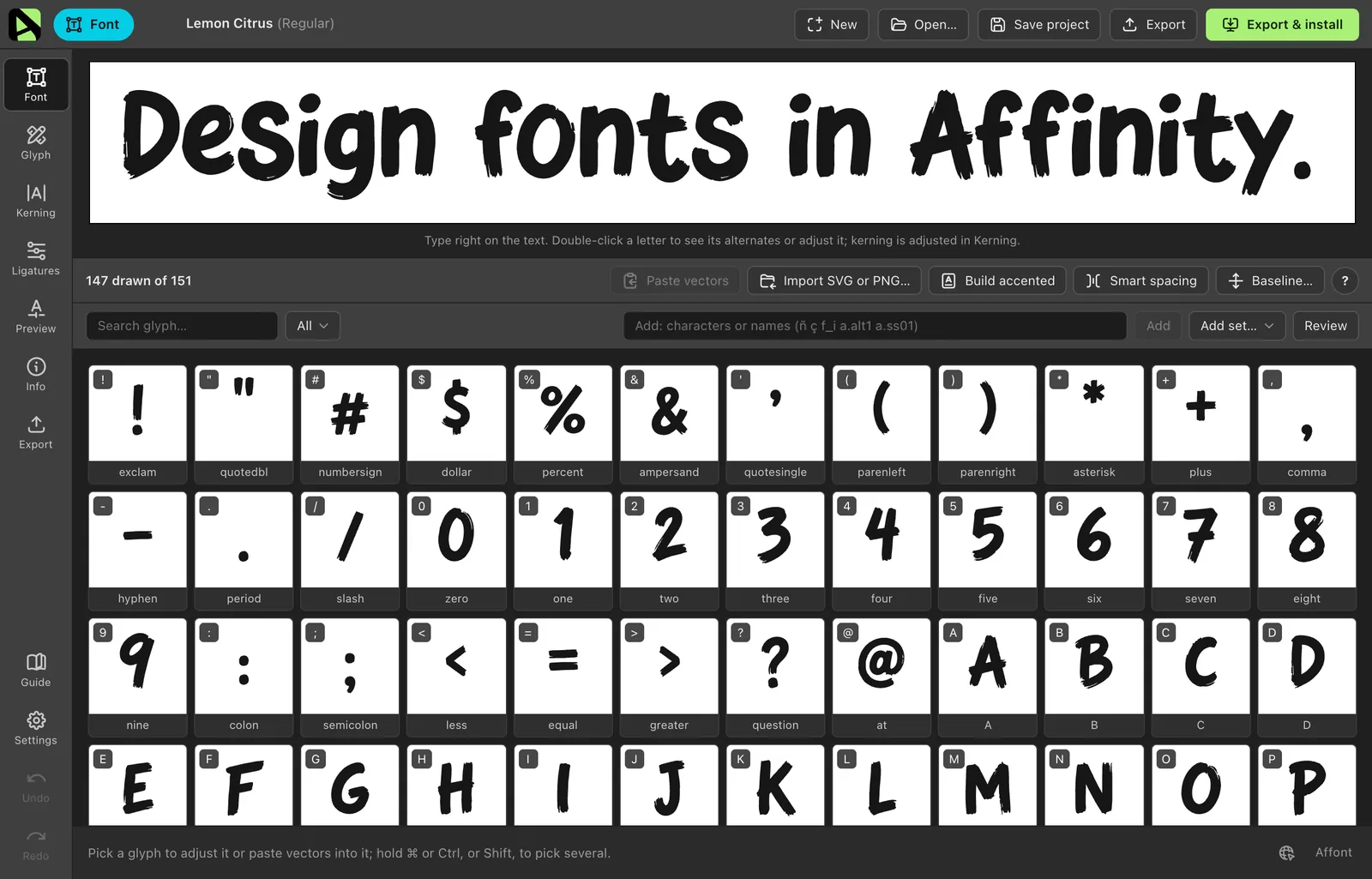
Affont supports a range of font creation features, including:
Creating fonts from vector lettering and custom illustrations.
Editing individual glyphs and character outlines.
Adjusting font spacing and kerning.
Generating automatic spacing and kerning suggestions.
Creating OpenType ligatures and stylistic alternates.
Building multilingual character sets.
Developing color fonts and font families.
Importing compatible native Affinity documents.
Opening existing OTF and TTF font files.
Exporting OTF, TTF, WOFF, and WOFF2 formats.
Generating restricted demo versions of completed fonts.
These capabilities make Affont useful for creating display fonts, branding typefaces, handwritten fonts, script fonts, and other custom lettering projects.
The application runs on Windows and macOS. Its integrated script workflow requires Affinity 3.3 or later, while native document import also supports compatible artwork created in older Affinity versions.
Why Designers Are Looking for Fontself Alternatives
Fontself Maker has long provided a convenient way for graphic designers to transform lettering into functional fonts.
Its integration with Adobe Illustrator allows designers to create letterforms using familiar vector drawing tools and convert them into OpenType fonts.
For many designers, this workflow removes much of the complexity associated with traditional font editing software.
However, Fontself Maker has one important limitation for Affinity users.
Fontself doesn't work directly with Affinity.
Its desktop extensions are designed for Adobe Illustrator and Photoshop.
This means designers switching from Adobe to Affinity need another way to turn their lettering into usable font files.
One option is to export characters individually and use a traditional font editor such as FontForge or FontLab.
Although this is possible, moving glyphs between different applications can introduce additional production steps.
Affont addresses this challenge by bringing font creation tools into the Affinity workflow.
Instead of replacing Affinity, Affont extends what designers can accomplish with it.
Is Affont a Direct Replacement for Fontself?
Affont serves a similar purpose to Fontself Maker, but the two tools operate differently.
Fontself works as an extension inside Adobe applications.
Affont connects Affinity to a companion desktop application containing font editing, kerning, spacing, preview, and export tools.
Both approaches allow designers to create fonts from existing artwork, but their integration methods differ.
If you already work primarily in Adobe Illustrator, Fontself may remain a convenient option.
However, if you're switching to Affinity or want to avoid an Adobe-dependent workflow, Affont is an alternative worth considering.
Affont vs. Fontself: Feature Comparison
Choosing the right font design software depends on your preferred creative applications and production requirements.
Here's how Affont compares with Fontself Maker.
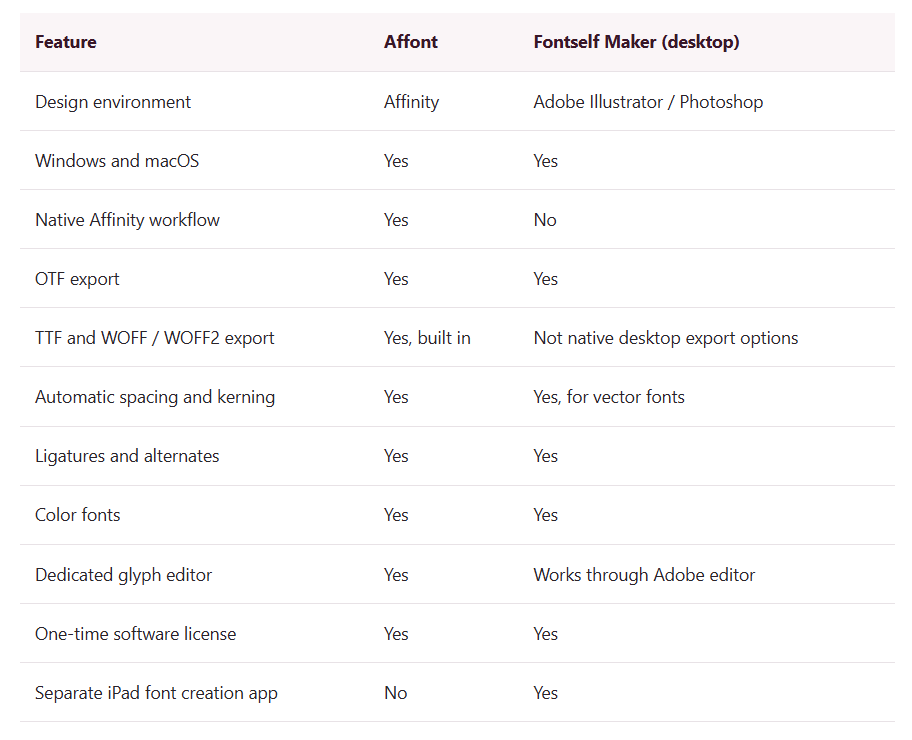
Comparison based on publicly available documentation in October 2026. Fontself Maker's desktop extensions export OTF files directly; additional formats require separate conversion tools.
Where Affont Has an Advantage
Affont is particularly useful for designers who already create their artwork in Affinity.
Its biggest advantage is the connection between vector drawing and the technical stages of font development.
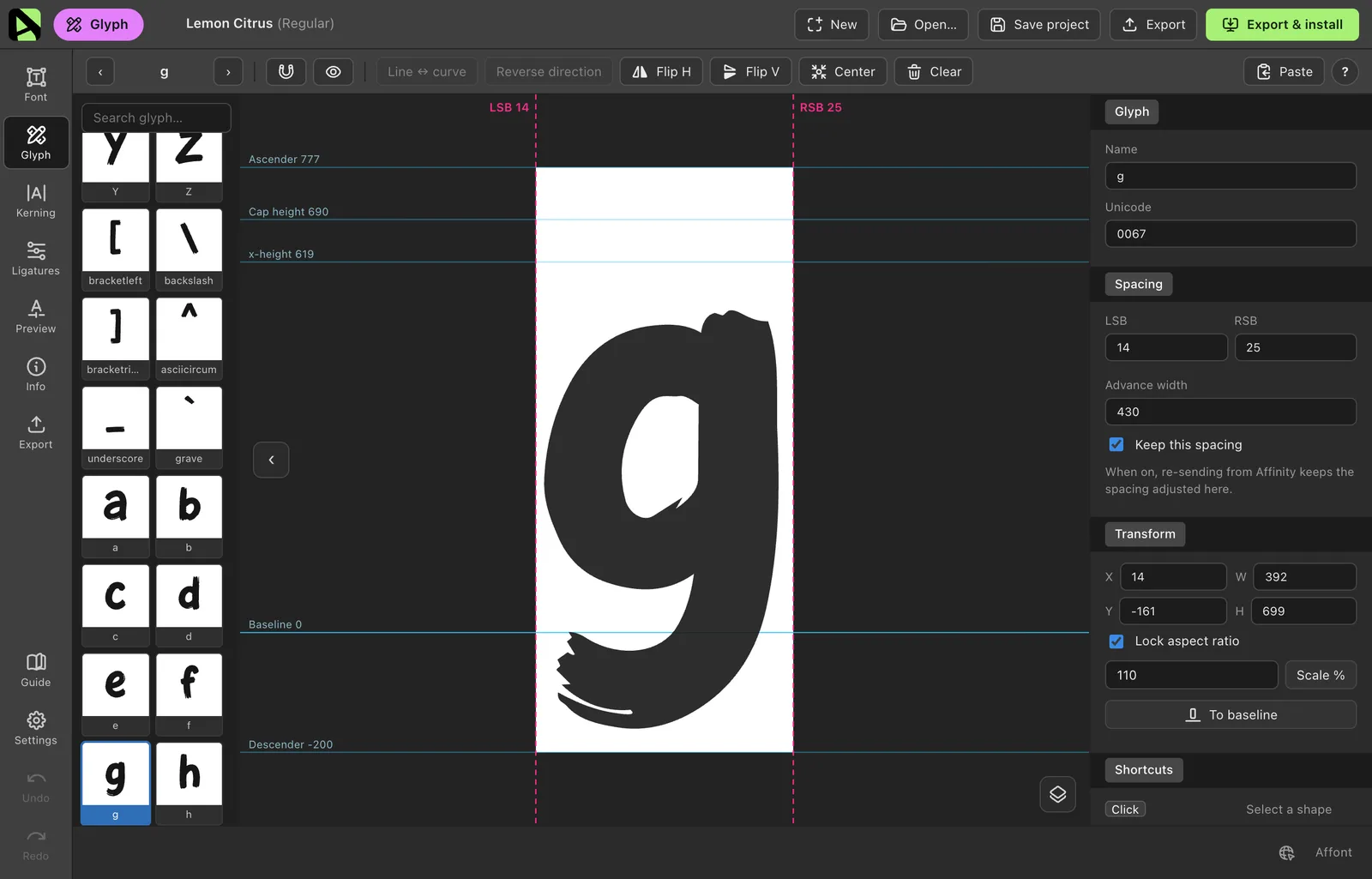
The companion application provides a dedicated workspace for glyph editing, kerning, font metrics, OpenType features, and testing.
Another advantage is its support for multiple export formats.
Affont can export desktop fonts in OTF and TTF formats, alongside WOFF and WOFF2 for web typography.
For designers preparing fonts for different platforms, this reduces the need for additional conversion software.
The ability to open compatible Affinity documents directly also provides flexibility when revising existing lettering projects.
Where Fontself Still Makes Sense
Fontself remains a useful solution for designers who already use Adobe Illustrator or Photoshop.
Its extension-based workflow fits naturally into the Adobe ecosystem.
Designers who have established a production process using Illustrator and Fontself may have little reason to change their setup.
Fontself also offers a separate iPad application, making it relevant for artists who prefer creating fonts on a tablet.
Ultimately, neither application is universally better.
Affont is especially relevant for Affinity users, while Fontself remains a strong option for designers working within Adobe Creative Cloud.
How to Create a Font in Affinity Using Affont
One of Affont's biggest advantages is its simplified font creation workflow.
Instead of manually exporting and organizing individual letters, designers can work with character templates and transfer their artwork into the font editor.
Here's how to create a font using Affont.
Step 1: Download and Install Affont
Start by visiting the official Affont website and installing the desktop application.
Affont is available for Windows and macOS.
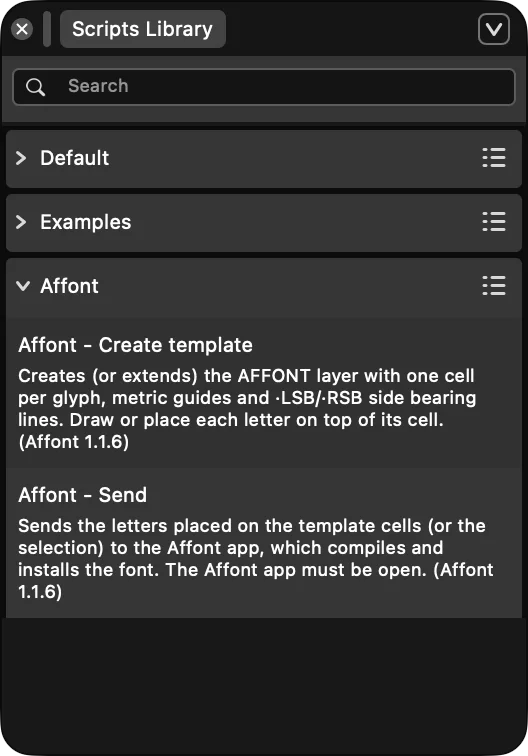
If you're using Affinity 3.3 or later, you can install Affont's integration scripts through Affinity's Script Library.
These scripts allow you to generate font templates and send your artwork directly into Affont.
Alternatively, Affont 1.1.8 introduced support for importing compatible native Affinity documents.
This provides another way to transfer your artwork without relying exclusively on the script workflow.
Step 2: Choose a Font Template
Affont provides ready-made font templates designed around common typography styles.
The available templates include:
Sans Serif: For contemporary branding, minimalist typography, and corporate identity.
Serif: For editorial designs, elegant branding, and traditional typefaces.
Handwritten: For handwriting-inspired fonts and casual lettering.
Script: For connected letterforms, calligraphy, and flowing typography.
Each template provides organized character cells with essential typographic guides.
These include the baseline, cap height, x-height, and side-bearing markers.
The templates also allow you to select character sets relevant to your project.
This helps designers begin with a consistent structure rather than manually preparing each glyph.
Step 3: Draw Your Letterforms in Affinity
Once the template is ready, start designing your characters.
Use Affinity's vector drawing tools, including the Pen Tool, geometric shapes, brushes, and strokes.
For a beginner-friendly font project, start by establishing the main visual characteristics of your typeface.
You might begin with letters such as H, O, n, and o to define proportions, stroke weight, and overall structure.
Then expand the design into a complete alphabet.
Consistency is essential.
Characters with similar construction should share related proportions, curves, and stroke characteristics.
For example, letters such as O, C, G, and Q often benefit from a consistent approach to their rounded forms.
Meanwhile, letters such as H, E, F, and I should follow a coherent structural system.
The goal isn't simply to create beautiful individual letters.
It's to create a typeface where every character belongs to the same visual family.
Step 4: Import Your Artwork Into Affont
After completing your letterforms, transfer them into Affont.
If you're using the integrated workflow, run the Affont Send script.
If you're working with a native Affinity document, load the compatible .af file directly into Affont.
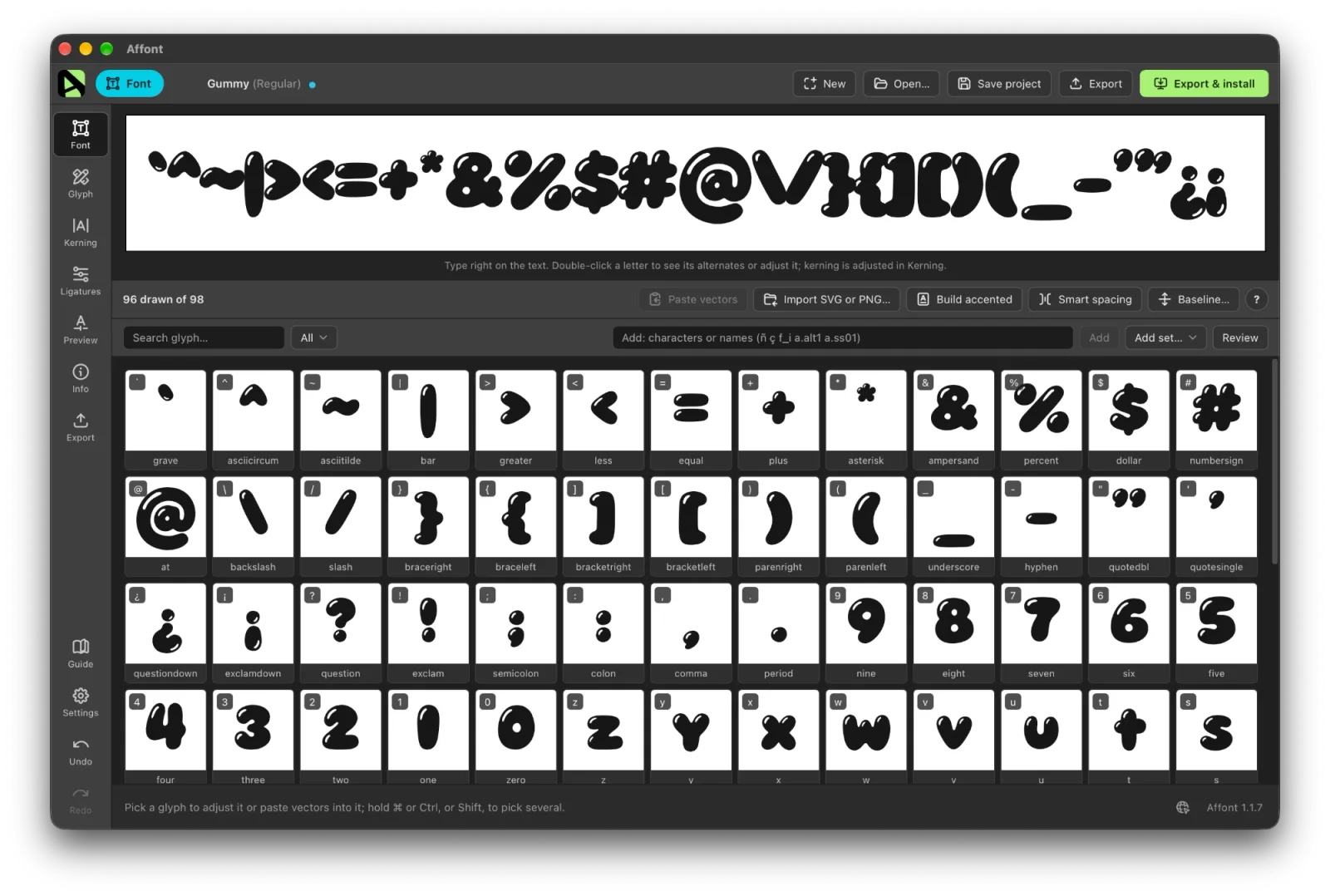
The application processes your artwork and organizes it into a font project.
You can then inspect the glyphs, adjust their positioning, and begin refining font-specific properties.
This is where your vector lettering becomes part of a functional typography system.
Step 5: Adjust Spacing and Kerning
Spacing and kerning are fundamental to professional typography.
Spacing controls the amount of space surrounding individual letters.
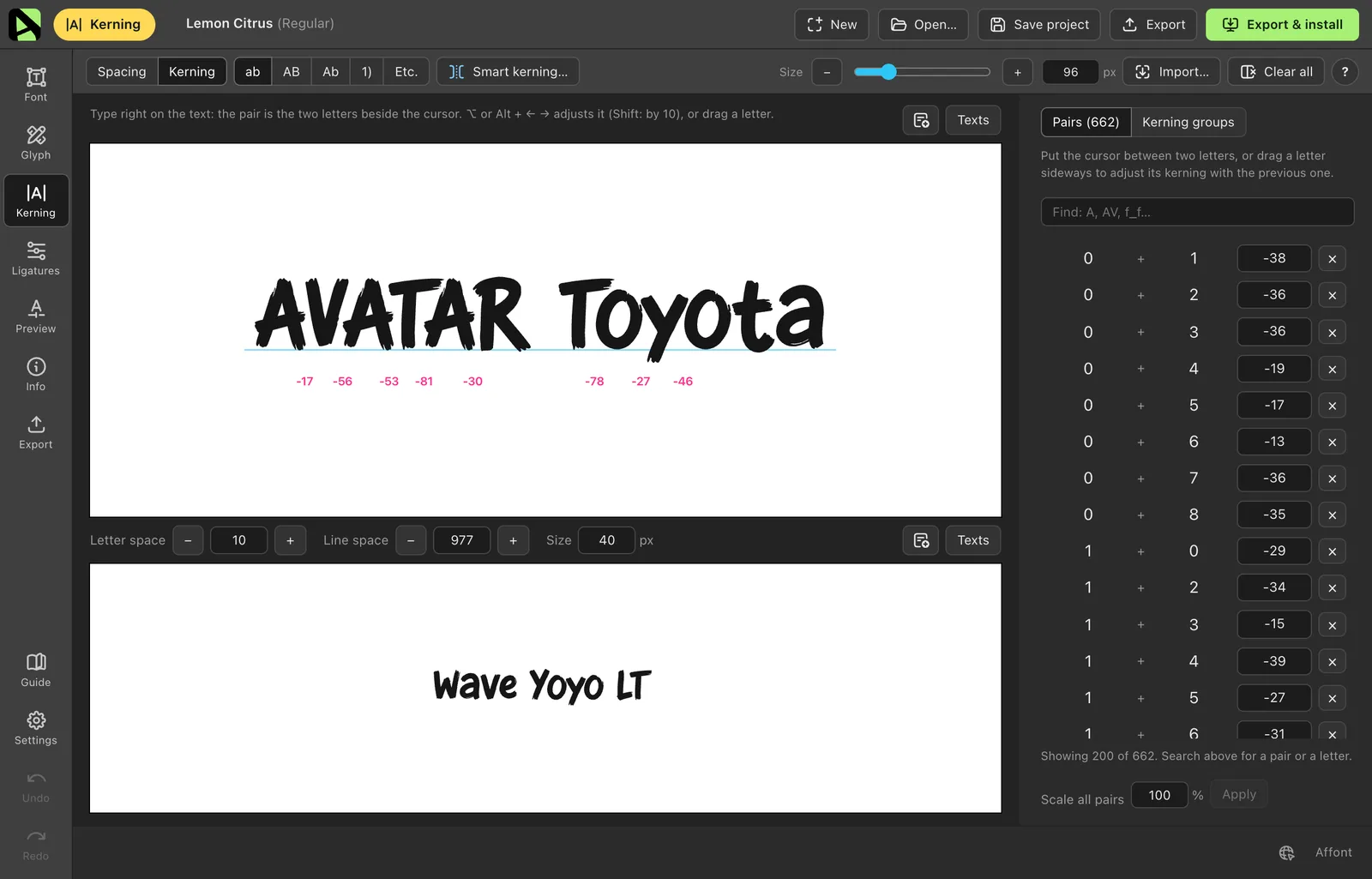
Kerning adjusts the space between specific pairs of characters.
Even if individual glyphs look balanced, some combinations may appear too close or too far apart.
Common examples include AV, To, Ta, Wa, and Yo.
Affont provides visual spacing and kerning tools that allow designers to adjust these relationships.
It also offers automatic spacing and kerning features that analyze letter shapes and negative space.
These tools can provide a starting point for refining a typeface.
However, automated values should always be reviewed manually, especially for unconventional display fonts and complex letterforms.
Step 6: Add OpenType Features
OpenType features can make a typeface more versatile and visually interesting.
Affont supports features including:
Standard ligatures.
Discretionary ligatures.
Stylistic alternates.
Contextual alternates.
Stylistic sets.
Small capitals.
Figure styles.
For example, a script font may include alternate letters that create more natural connections between characters.
A luxury display font may include distinctive ligatures for logo design and branding.
Affont uses glyph naming conventions to help organize OpenType substitutions.
A glyph named f_i can represent a ligature, while a.alt1 can define an alternate version of the lowercase a.
These features are especially valuable when developing expressive fonts for commercial design projects.
Step 7: Preview, Test, and Export Your Font
Once the essential characters and features are ready, it's time to test your typeface.
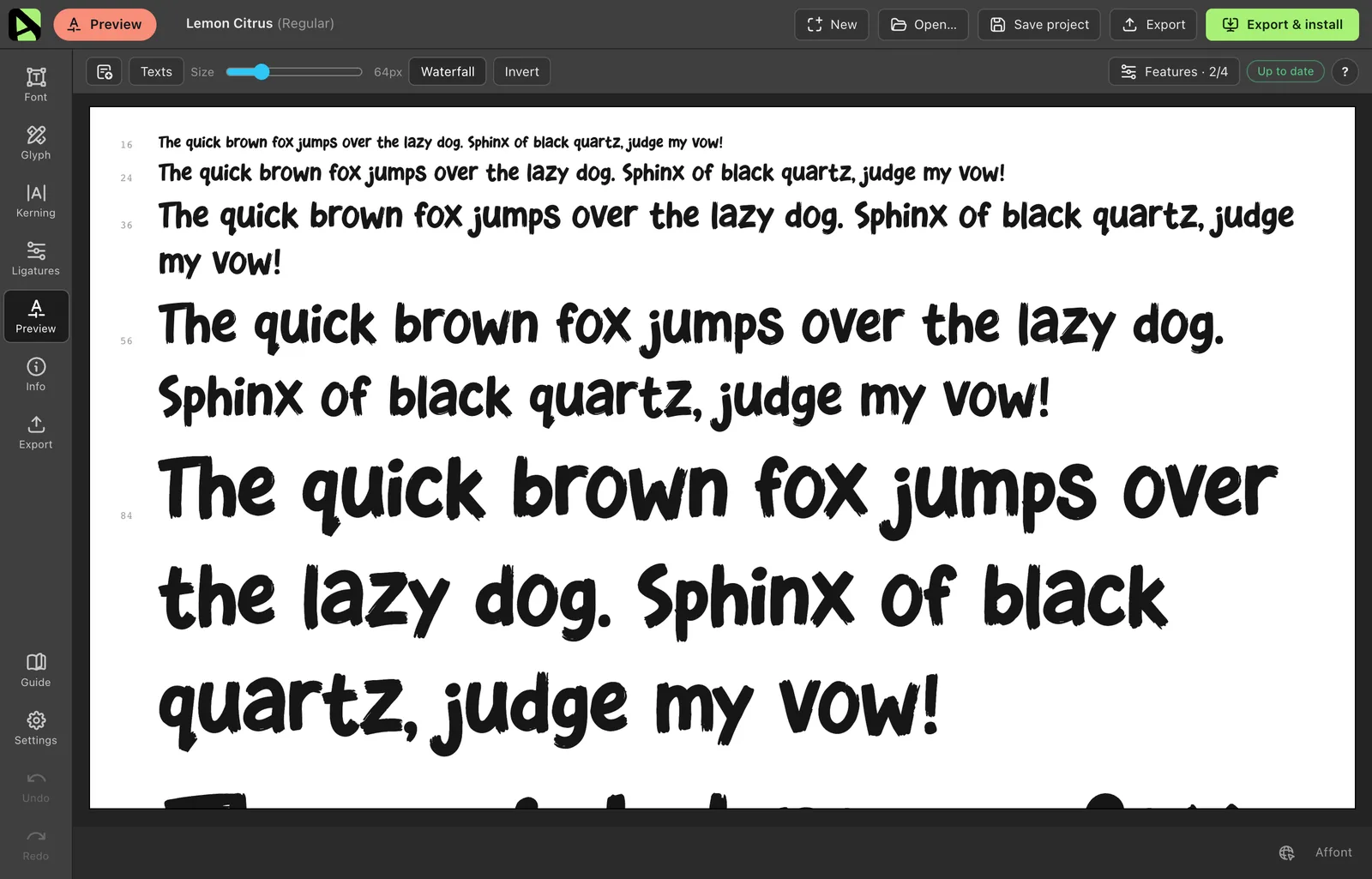
Affont provides a live font preview where designers can inspect words, paragraphs, character combinations, and OpenType behavior.
Test your font at different sizes and in different contexts.
Pay attention to spacing, punctuation, accents, and unusual character combinations.
When you're satisfied, export the font using the format required for your project.
OTF (OpenType): Suitable for professional design applications and common desktop typography workflows.
TTF (TrueType): A widely supported format for desktop applications and operating systems.
WOFF: A compressed web font format supported by browsers.
WOFF2: An efficient web font format commonly used for modern websites.
After exporting, install the font and test it in real design applications before distributing it.
Best Affont Features for Professional Font Designers
Affont includes several features that make it particularly interesting for independent type designers and font foundries.
1. Native Affinity File Support
One of the most significant improvements introduced in Affont 1.1.8 is native Affinity document support.
The application can read compatible .af documents directly.
Designers can create artwork in Affinity, save the document, and use the Reload feature to import changes into Affont.
This allows a more flexible editing process without transferring every modification through scripts.
The feature also supports compatible documents created in Affinity 1, Affinity 2, and Affinity on iPad.
However, Affont itself remains a desktop application for Windows and macOS.
2. Automatic Spacing and Kerning Engine
Spacing and kerning are among the most time-consuming parts of font production.
Affont attempts to simplify these tasks using automatic analysis of letterforms.
The updated Affont Kerning Engine, introduced in version 1.1.8, evaluates glyph shapes and the negative space between characters.
According to the developer, the engine uses models trained on spacing and kerning information from 296 professional fonts, with additional evaluations on 68 previously unseen fonts.
The system analyzes properties such as letter contours, diagonals, counters, and the visual relationships between neighboring glyphs.
It then suggests spacing and kerning values intended to produce more balanced typography.
For designers creating display fonts, this can reduce some of the repetitive adjustments involved in preparing a typeface.
However, automatic kerning should still be treated as a starting point rather than a substitute for manual quality control.
3. OpenType Ligatures and Alternates
OpenType features are particularly valuable for branding fonts, script typefaces, and decorative display fonts.
Affont provides tools for creating ligatures and alternate letterforms without requiring designers to manually build every OpenType feature.
Contextual alternates can also change based on surrounding characters or their position within a word.
This is useful for handwriting and script fonts, where repeated shapes can make lettering look artificial.
For commercial type designers, these capabilities can help produce more versatile font products.
4. Multilingual Font Support
Creating a multilingual font requires more than designing an English alphabet.
Accented characters, diacritics, symbols, and language-specific combinations require consistent proportions and careful positioning.
Affont supports multiple character sets, including expanded Latin alphabets, Vietnamese, Japanese kana, and Thai.
It also provides tools for building accented characters from base letters and combining marks.
These features can simplify the process of developing broader language coverage.
However, multilingual glyphs should still be inspected individually.
Character proportions, accent positioning, and spacing may require manual adjustments before commercial release.
5. Automatic Demo Font Export
One of the most interesting additions in Affont 1.1.8 is the ability to generate a separate demo font during export.
For independent font foundries, creating trial versions is often an additional step in preparing commercial products.
Affont simplifies this process by allowing designers to choose which character categories should be restricted.
Selected glyphs can be omitted or replaced with a designated character.
The original font project remains unchanged, while a separate demo version is exported.
For foundries that distribute promotional samples, this feature can reduce repetitive work.
Demo fonts should still be distributed with a clear license that defines their permitted use.
6. Color Fonts and Creative Lettering
Affont also supports color font creation.
Designers can work with colored vector artwork, gradients, and compatible bitmap elements.
The application supports OpenType-SVG color fonts with a COLR fallback.
This makes it useful for illustrated lettering, decorative alphabets, and experimental typography.
Because color font support varies across applications, designers should test the exported files in their intended environments.
7. Font Families and Multiple Styles
Affont supports organizing related font styles into families.
A project might include Regular, Bold, Italic, or other coordinated variations.
This helps designers develop typography systems rather than isolated font styles.
Consistent naming, metrics, glyph coverage, and testing remain important when preparing a complete font family.
Our Experience Using Affont at Sensatype Studio
At Sensatype Studio, creating fonts is part of our daily design work.
Our production workflow involves several stages, from drawing letterforms to adjusting spacing, creating multilingual glyphs, refining OpenType features, and preparing final files for commercial distribution.
We previously worked with an Illustrator and Fontself-based workflow, and we've been evaluating Affont as we introduce Affinity into our font production process.
What makes Affont interesting from a font foundry perspective is its ability to connect vector illustration with font-specific editing tools.
The character templates provide a structured workspace, while the companion application brings together several important stages of typography production.
For display fonts and branding typefaces, this approach can simplify repetitive tasks.
Instead of manually managing individual character exports, designers can focus more attention on developing consistent letterforms.
What We Like About Affont
Affinity Integration
The ability to create letterforms using Affinity's familiar vector tools makes the transition from general graphic design to font creation more approachable.
Organized Character Templates
Templates with individual glyph cells and typography guides help maintain a consistent working structure.
Integrated Typography Tools
Spacing, kerning, glyph editing, OpenType features, and font previews are available within the companion application.
Multiple Export Formats
Direct OTF, TTF, WOFF, and WOFF2 exports simplify preparing fonts for desktop and website use.
Demo Font Generation
The ability to export restricted demonstration fonts is particularly useful for independent font foundries.
Active Development
Affont has received frequent updates, including improvements to character handling, multilingual support, spacing, kerning, and native Affinity document integration.
What Could Be Improved?
During our early evaluation of Affont, we identified several areas that required additional attention.
Some punctuation and special characters needed verification during glyph transfer.
We also encountered inconsistencies involving certain multilingual glyph proportions and spacing or kerning behavior.
These observations were shared with the Affont development team.
Subsequent updates addressed several related areas, including glyph naming, punctuation handling, batch scaling, and the spacing and kerning system.
Version 1.1.8 also introduced a redesigned kerning engine.
Because these improvements arrived during our evaluation period, our earlier observations should not be interpreted as confirmed problems in the latest version.
Like any typography software, Affont still benefits from thorough testing, especially when creating commercial fonts with extensive character sets.
From our perspective, the ideal workflow combines useful automation with careful manual quality control.
How to Switch From Fontself to Affont
If you're moving from Adobe Illustrator and Fontself to Affinity, you may be able to reuse much of your existing vector artwork.
The transition primarily involves transferring your letterforms and rebuilding the font project within Affont.
Reuse Your Illustrator Artwork
If you have the original vector drawings, export or copy them into a format that Affinity can import, such as SVG.
Place the characters inside an Affont template and verify their proportions and alignment.
Once the characters are organized, transfer the artwork into Affont.
Import Existing Font Files
Affont can open existing OTF and TTF font files.
This can be useful when working with previously exported typefaces.
However, an exported font is not identical to the original editable project.
Some application-specific information may not transfer directly between Fontself and Affont.
Always inspect character mappings, metrics, kerning, OpenType features, and family names after importing a font.
Test the Workflow Before Migrating Completely
If you're producing fonts commercially, consider testing Affont with a smaller project before moving an entire production workflow.
Start with a simple display font containing uppercase letters, numbers, and punctuation.
Then expand into lowercase characters, multilingual support, ligatures, and additional OpenType features.
This makes it easier to evaluate which tasks are more efficient in Affont and which require further manual adjustments.
Affont Pricing: Is It Worth $24?
As of October 2026, Affont is available for $24 as a one-time purchase.
The license includes:
Installation on up to three computers at the same time.
Windows and macOS compatibility.
Access to its font creation features.
Updates throughout version 1.x.
Commercial use of the fonts you create.
No recurring Affont subscription fee.
According to Affont's terms, designers retain ownership of the fonts they create and can distribute, license, or sell them commercially.
For comparison, Fontself Maker for Illustrator is currently advertised at a promotional price of $39, while the Illustrator and Photoshop bundle is listed at $59.
Both Fontself options are one-time purchases, but their desktop extensions require compatible Adobe applications.
If you're already using Adobe Illustrator, Fontself may remain a practical choice.
However, for designers who prefer Affinity, Affont provides an accessible alternative without an Adobe subscription.
For independent designers and small font foundries, its pricing makes it a relatively affordable tool to evaluate.
Visit the official Affont website and Fontself store for the latest pricing and compatibility information.
Affont vs. Traditional Font Design Software
Affont sits between simple font creation extensions and more specialized font editing applications.
Traditional tools such as FontLab, Glyphs, and FontForge provide extensive capabilities for different levels of type design and font engineering.
These applications may be more appropriate for complex projects requiring detailed technical control.
Affont takes a more accessible approach.
Its main goal is to help designers turn artwork created in Affinity into functional fonts without introducing an unnecessarily complicated workflow.
For display fonts, branding typefaces, handwritten fonts, and decorative lettering, this can be particularly appealing.
For advanced variable font development, detailed hinting, or highly specialized typography engineering, a dedicated professional font editor may still be necessary.
In some situations, the tools can complement each other.
A designer might create the initial artwork and font in Affont, then continue advanced development using a specialist editor.
The best font design software depends on the complexity of the typeface and the requirements of the final product.
Who Should Use Affont?
Affont is particularly relevant to creative professionals who want to turn their lettering into functional typography.
Graphic Designers: Create reusable fonts from custom lettering, logos, and visual identity concepts.
Lettering Artists: Convert hand-drawn alphabets and illustrations into digital typefaces.
Branding Studios: Develop custom typography for identity systems and client projects.
Independent Type Designers: Produce display fonts without relying on an Adobe-based workflow.
Font Foundries: Explore tools for character preparation, spacing, kerning, OpenType development, and demo font exports.
Affinity Users: Expand existing vector design skills into font creation.
If you're already familiar with Affinity and want to create your own fonts, Affont is worth exploring.
Frequently Asked Questions About Affont
Is Affont a good Fontself alternative?
Yes. Affont is a relevant Fontself alternative for designers using Affinity rather than Adobe Illustrator or Photoshop. Both tools help convert artwork into functional fonts, but they are designed for different software ecosystems.
Does Fontself work with Affinity?
No. Fontself Maker's desktop extensions work with compatible versions of Adobe Illustrator and Photoshop. They cannot be installed directly into Affinity.
Can you create fonts in Affinity?
Yes, with additional software such as Affont. Affinity can be used to draw the letterforms, while Affont provides the tools needed to create, edit, and export usable fonts.
Is Affont free?
No. Affont is available for $24 as a one-time purchase as of October 2026. It does not require a recurring subscription.
Can Affont export OTF, TTF, and web fonts?
Yes. Affont supports OTF, TTF, WOFF, and WOFF2 exports, allowing designers to prepare fonts for desktop applications and websites.
Does Affont support automatic kerning?
Yes. Affont includes automatic spacing and kerning tools. Version 1.1.8 introduced an updated kerning engine trained using data from professional fonts.
Can I sell fonts created with Affont?
Yes. According to Affont's terms, designers retain ownership of their original font creations and may use, distribute, or sell them commercially.
Can Affont open existing fonts?
Yes. Affont can open existing OTF and TTF files. However, imported fonts should be carefully reviewed to verify glyphs, metrics, and OpenType behavior.
Does Affont work with Affinity Designer 2?
Affont's script integration requires Affinity 3.3 or later. However, its desktop application can import compatible native documents created using Affinity 1 and 2.
Does Affont work on iPad?
Affont itself is a Windows and macOS application. It can import compatible Affinity files created on an iPad, but it does not provide a native iPad font editing application.
Can Affont replace FontLab or Glyphs?
For some straightforward display font projects, Affont may provide the tools a designer needs. However, complex typeface development may still require specialized applications such as FontLab or Glyphs.
Final Verdict: Is Affont Worth It in 2026?
For designers looking for a Fontself alternative that works with Affinity, Affont is a compelling option.
Its greatest strength is how it connects familiar vector design tools with the technical requirements of font production.
Instead of manually exporting individual glyphs and assembling them through multiple applications, designers can work within a more connected workflow.
Affont combines character templates, native Affinity document support, automatic spacing and kerning, OpenType features, multilingual tools, and multiple export formats.
The introduction of native .af support, the updated kerning engine, and automatic demo font generation in version 1.1.8 makes the software particularly interesting for designers and independent font foundries.
It won't eliminate the need for typography knowledge or careful quality control.
However, it offers an accessible way to reduce repetitive production work while allowing designers to focus on the creative aspects of building typefaces.
From our perspective at Sensatype Studio, the most promising aspect of Affont is its potential to simplify parts of the font creation process without forcing designers to abandon their preferred drawing environment.
For graphic designers, lettering artists, and font creators moving away from an Adobe-dependent workflow, Affont deserves consideration.
Ready to Create Your Own Fonts in Affinity?
Whether you're developing your first display font or exploring a more efficient workflow for professional type design, Affont provides a practical way to transform vector artwork into usable typography.
Discover its features, explore the workflow, and start creating your own fonts.
Explore Affont — Get Started for $24
Disclosure: Sensatype Studio received team licenses from Affont as part of a collaboration. This review combines our early workflow observations with information from the developer's published documentation. Features, compatibility, and pricing were checked in October 2026.